


LRS Reference Manual
Services provide links for TCP or SPX (Sequenced Packet Exchange) connections to LRS serial ports. They are employed in modem sharing to establish connections to the LRS modems.
Figure 10-1: Creating a New Service
| Local>> DEFINE SERVICE fastmodems |
Figure 10-2: Associating a Port with a Service
| Local>> DEFINE SERVICE fastmodems PORTS 2 |
Figure 10-3: Associating Service With Multiple Ports
| Local>> DEFINE SERVICE fastmodems PORTS 2-4 |
Figure 10-4: Configuring a Port for Outgoing Connections
| Local>> DEFINE PORT 2 ACCESS DYNAMIC |
Figure 10-5: Configuring Modem Operation on a Port
| Local>> DEFINE PORT 2 MODEM CONTROL ENABLED Local>> LIST MODEM Local>> DEFINE PORT 2 MODEM TYPE 5 |
For more information on modem configuration, see Chapter 9 - Modems. For more information on port configuration, see Chapter 8 - Ports.
To display specific information about a service, the following parameters may be used with the Show/Monitor/List Services command: Characteristics, Summary, and Status. For example, to display a service's characteristics (including the ports associated with it), use the following command:
Figure 10-6: Displaying a Service's Characteristics
| Local> LIST SERVICES fastmodems CHARACTERISTICS |
Figure 10-7: Enabling SPX on a Service
| Local>> DEFINE SERVICE fastmodems SPX ENABLED |
The Redirector intercepts communications to specified COM ports and sends them over an SPX connection to an LRS serial port. This enables the PC to use the LRS serial port as if it were one of the PC's COM ports.
To determine the available services, the Redirector checks the NetWare bindery. The bindery receives information about the available services from SAP packets and continually updates its list of services. The LRS will issue SAP packets when SPX is enabled; to enable SPX, see IPX Service Configuration.
The Redirector permits only one logical port to be active at a time. The communications software cannot establish simultaneous connections using multiple redirected ports.
The Redirector must be installed on each PC that will share LRS modems.
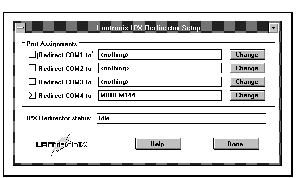
When the Redirector is launched, the Setup Summary window will appear.
Figure 10-8: Setup Summary Window

The Port Assignments area displays information about the redirection of each COM port.
The status area displays the current status of the Redirector. This area will display one of the following messages:
Table 10-1: Redirector Status Messages
| Message | Explanation |
|---|---|
| Idle | The Redirector is loaded and is successfully communicating with the setup utility, but is currently idle. |
| Redirecting COM <number> to | The Redirector has an open SPX connection to a service. The name of the service and the COM port number should be displayed. |
| Connection failed | A network error caused the connection to fail. |
| Connection terminated by server | The LRS closed the connection. This may be caused by a privileged user logging out the port. |
Figure 10-9: Service Selection Window
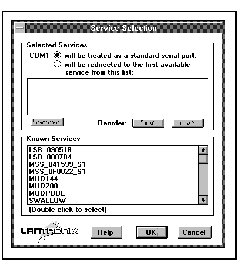
All available LRS services are displayed in the Known Services area. The list will be obtained from the NetWare bindery each time the Redirector setup utility is executed. If new services are added to the bindery while the setup utility is running, they will not be displayed in the Known Services list until the next time that the setup utility is run.
To configure this COM port to redirect data to a service, double-click the service name. Up to four services may be associated with each COM port.
As services are associated with the COM port, they will be displayed in the Selected Services area. When configuration is complete, the Redirector will redirect data to the first available service in this area.
To change the order of the services in the list, select a service name and click the First and Last buttons. To remove a service from the list, click the Remove button.
When you've finished configuring the COM port, click the OK button. The Setup Summary window [Figure 10-8] will appear. To complete the redirection, click the check box to the left of the COM port number.
When you've finished configuring all ports, click the Done button.
Figure 10-10: Redirector Loading
To associate a service with a TCP listener socket, use the Set/Define Service TCPport command. Socket numbers must be between 4000 and 4999.
Figure 10-11: Specifying a Raw TCP Listener Socket
| Local>> DEFINE SERVICE highspeedmodem TCPPORT 4999 |
Figure 10-12: Specifying a Telnet TCP Listener Socket
| Local>> DEFINE SERVICE highspeedmodem TELNETPORT 4500 |
If you're using Telnet to connect to the LRS, connect to port 2000 + n. The 2000 port is intended for Telnet connections; it performs Telnet IAC character-escaping negotiations on the data stream. In the example below, the Telnet command is used to connect to LRS serial port 3.
Figure 10-13: Telnetting Directly to Port 3
| % TELNET server_name 2003 |
Figure 10-14: Connecting to a Local Service/Port
| Local>> CONNECT LOCAL fastmodems Local>> CONNECT LOCAL PORT_2 |
Once the connection is established, commands may be issued to the modem attached to the serial port.
Table 10-2: Modems Connected to the LRS
| Modems | Connected to | LRS Modem Type # |
|---|---|---|
| Two 28,800 bps modems | Ports 2 and 3 | 6 |
| Four 14,400 bps modems | Ports 4 -7 | 5 |
| One 9,600 bps modem | Port 8 | 4 |
Three services will be created for the modems: fastmodems, slowmodems, and slowestmodem. These will be used for the 28,800, 14,400, and 9,600 modems, respectively.
The LRS must be configured as shown below:
Figure 10-15: LRS Configuration
| Local>> DEFINE SERVICE fastmodems PORTS 2-3 SPX ENABLED Local>> Local>> DEFINE PORT 2-3 ACCESS REMOTE Local>> DEFINE PORT 2-3 MODEM TYPE 6 Local>> DEFINE PORT 2-3 MODEM CONTROL ENABLED Local>> Local>> DEFINE SERVICE slowmodems PORTS 4-7 SPX ENABLED Local>> Local>> DEFINE PORT 4-7 ACCESS REMOTE Local>> DEFINE PORT 4-7 MODEM TYPE 5 Local>> DEFINE PORT 4-7 MODEM CONTROL ENABLED Local>> Local>> DEFINE SERVICE slowestmodem PORT 8 SPX ENABLED Local>> Local>> DEFINE PORT 8 ACCESS REMOTE Local>> DEFINE PORT 8 MODEM TYPE 4 Local>> DEFINE PORT 8 MODEM CONTROL ENABLED Local>> Local>> LOGOUT PORT 2-8 Local>> INITIALIZE DELAY 0 |
The Service Selection window is shown in Figure 10-9.Table 10-3: Redirector Configuration
| COM Port # | Redirect? | Selected Services (in order) |
|---|---|---|
| COM Port 1 | Yes | fastmodems slowmodems |
| COM Port 2 | Yes | slowmodems slowestmodem |
| COM Port 3 | No | None |
| COM Port 4 | No | None |
If a connection attempt fails, check the port's access. The access must be set to dynamic or remote in order to support outgoing connections. Failed connections may also result if the port is currently in use.
| Problem | Possible Cause(s) | Remedy |
| The Redirector setup utility can't see any services. | There is a problem with the NetWare bindery. | For NetWare 4.x, enable bindery emulation. |
| The LRS is not advertising its services. | If IPX routing is enabled, use the Show/Monitor/List IPX command to ensure that the correct frame type and network number are enabled. In addition, ensure that SAP Send is enabled. | |
| The Redirector can't connect to an LRS service. | A port can't initialize its attached modem. | Logout the port. Check the modem initialization string. |
| The COM port is not configured to redirect serial data to one or more LRS services. | Configure the COM port to redirect data to its list of Selected Services. | |
| All ports associated with the service are busy. | Use the Show/Monitor/List Services Characteristics command and examine the Rating field. If the service rating is 0, all ports associated with the service are in use. |
| Using Services For Modem Sharing: Step by Step Configuration | |||
| To | Use This Command | Example(s) | What Example Does |
| Create a Service | Set/Define Service | DEFINE SERVICE fastmodems | Creates a new service named "fastmodems". See Creating a Service for more information. |
| Associate Ports with a Service | Set/Define Service Ports | DEFINE SERVICE fastmodems PORTS 2-4 | Associates the "fastmodems" service with ports 2, 3, and 4. See Associating Ports with a Service for more information. |
| Configure a Port to Support Outgoing Connections | Set/Define Port Access Remote/Dynamic | DEFINE PORT 2 ACCESS REMOTE | See Access to a Port for more information. |
| Configure a Port to Support Modem Operation | 1. Define Port Modem Control Enabled | DEFINE PORT 2 MODEM CONTROL ENABLED | Enables modem operation on port 2. |
| 2. Define Port Modem Type | DEFINE PORT 2 MODEM TYPE 5 | Associates port 2 with modem profile 5. The port will be configured in accordance with the modem profile. See Modem Profiles for more information. | |
| Display Existing Services | Show/Monitor/List Services | LIST SERVICES fastmodems CHARACTERISTICS | Displays the characteristics of "fastmodems", including any associated ports. See Displaying Current Services for more information. |
| IPX | |||
| To | Use This Command | Example(s) | What Example Does |
| Enable SPX on a Service | Set/Define Service SPX Enabled | DEFINE SERVICE fastmodems SPX ENABLED | Enables SPX on the "fastmodems" service. See IPX Service Configuration for more information. |
| Configure and Use the Redirector | See Redirector. | ||
| IP | |||
| To | Use This Command | Example(s) | What Example Does |
| Create a TCP Listener Socket | 1. Set/Define Service TCPport | DEFINE SERVICE highspeedmodem TCPPORT 4999 | Associates the "highspeedmodem" service with TCP listener socket 4999. TCP connections to 4999 will be connected to "highspeedmodem". See Connecting to a TCP Listener Service for more information. |
| 2. Set/Define Service Telnetport | DEFINE SERVICE highspeedmodem TELNETPORT 4500 | Associates the "highspeedmodem" service with TCP listener socket 4500. TCP connections to 4500 will be connected to "highspeedmodem", and Telnet IAC character-escaping will be performed. | |
| IP, cont. | |||
| To | Use This Command | Example(s) | What Example Does |
| Connect Directly to an LRS Serial Port | Connect Telnet 2000 + <serial port #>or | TELNET server_name 2003 | Connects user to LRS serial port 3; Telnet IAC character-escaping will be performed. See Connecting to an LRS Serial Port for more information. |
| Connect Telnet 3000 + <serial port #> | TELNET server_name 3003 | Connects user to LRS serial port 3; this is an 8-bit clean connection. | |
| Connect to a Local Service or Port From an LRS Login | Connect Local | CONNECT LOCAL fastmodems | Connects to the local "fastmodems" service. See Connecting to an LRS Service or Port for more information. |
| CONNECT LOCAL port_2 | Connects directly to LRS port 2. |
LRS Reference Manual - 4 MARCH 1996
Generated with Harlequin WebMaker